
[Help Centre]
Have question about BagusNiaga? Read up on Guides about account sign up, tutorials and more on BagusNiaga Help Centre!
Tutorial - Sign up BagusNiaga
(How To) Tutorial - BagusNiaga Dashboard
(How To) Tutorial - B.Niaga (BagusNiaga App)
[How to sign up BagusNiaga]
Simple Steps To Start With BagusNiaga
Before creating an account, please read BagusNiaga's Terms of Use and Privacy Policy.
1. Sign up via BagusNiaga Website
Select Sign up on BagusNiaga Website > Enter Email Address, Name & IC as MYKAD > Click Submit > Check your Email > you will receive a Verification Link from BagusNiaga > Click the Link > Fill in your Merchant Info > Click Submit > Done!
Video Guide
2. Login to BagusNiaga Portal
Go to ai.bagusniaga.com > Enter Email Address & Password > Click SIGN IN
Video Guide
3. Download B.Niaga App (BagusNiaga App) in Google Play Store
Go to BagusNiaga Website > Click GET IT ON Google Play > Click Install > Click Open
Video Guide
4. Register B.Niaga App with Subscription ID & APP Key
1. BagusNiaga Portal
Sign in to ai.bagusniaga.com > Click App Register Key from left menu > Copy Subscription ID & Register Key
2. B.Niaga App (BagusNiaga App)
Open B.Niaga App in phone/tablet > Insert Subscription ID & Register Key you copied from portal > click Register > Key in PIN No default is 1234 / 2222 > You're successfully registered BagusNiaga Account with B.Niaga App
Video Guide
[How to Add Product Category]
1. Login to BagusNiaga Dashboard
2. Select Product Category
3. Click Add Category
4. Fill in category name.
5. Click Save
6. #bagussekali
Video Guide
[How to Add Product]
1. Login to BagusNiaga Dashboard
2. Select Product Item
3. Click Add Product
4. Fill in product details & price. (Item code & Item barcode put same figure)
6. Click Save
7. Upload image (if any)
8.Click Save
9. #bagussekali
Video Guide
[How to view Report]
1. Login to BagusNiaga Dashboard
2. Select Reports
3. Set the date (From date to date)
4. Click Generate
5. You can export the report to PDF/CSV/Excel format by clicking Icon
6. #bagussekali
Video Guide
[How to export Report]
1. Login to BagusNiaga Dashboard
2. Select Reports
3. Set the date (From date to date)
4. Click Generate
5. You can export the report to PDF/CSV/Excel format by clicking Icon
6. #bagussekali
Video Guide


B.Niaga App Versions
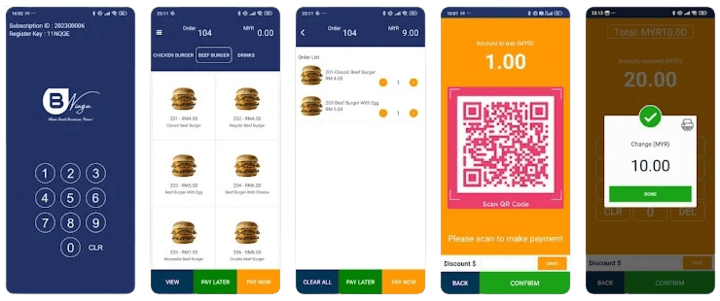

Version 1.0.1.4
- Minor Bug fixed
Version 1.0.1.3
- Printer Auto Connect on App startup
- Minor Bug Fixed
Version 1.0.1.2
- Minor Bug fixed
Version 1.0.1
iPay88 Integration
· • Merchant Scan: Accepts TNG eWallet, Mcash, MAE by Maybank2u, Boost, GrabPay, ShopeePay, Setel, Alipay+, Weixin Pay, UnionPay QR.
· • User Scan: Dynamic DuitNow QR option.
Report Preview Feature
· • Item Report Preview
· • Sales Report Preview
· • Receipt Print Preview
Version 1.0.0
Card Terminal Integration (MF919)
· • Supports credit and debit card payments via BSN.
· • E-Wallet payments through Paydibs Pay.
Paydibs Pay Integration
· • Accepts various e-wallets: TNG eWallet, MAE by Maybank2u, GrabPay, Mcash, ShopeePay, Boost, .
Multi Manual Payment Methods
· • Cash
· • Static Duit Now (Uploadable from BagusNiaga Portal)
· • GrabFood
· • FoodPanda
· • ShopeeFood
· • Customizable options: 'Other 1' and 'Other 2' with name-change capability.
Order Queue Management
· • Pending Order status
· • Ready for Pickup status
Hardware Integration
· • Supports Bluetooth and network printers.
Additional Features
· • Pay Later option
· • Transaction history
· • Language support: Malay, English, Chinese
· • Item & Sales Reports
· • Settlement printing
· • Sync Menu
· • Pdate (posting date) setting (default is 00:00:00 + 4 hours)
BagusNiaga Dashboard Features
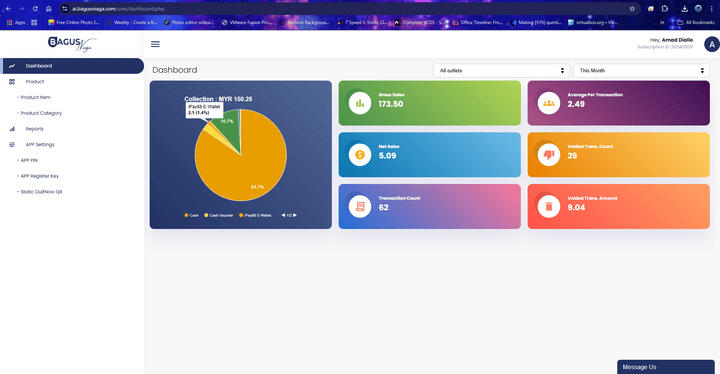
Key Features
Dashboard
· • Collection
· • Gross Sales
· • Net Sales
· • Transaction Count,
· • Average Per Transaction
· • Void Trans Count
· • Void Transaction AmountProduct
· • Product Category
· • Product ItemReport
· • Sales Summary
· • Daily Sales Summary
· • Sales Revenue
· • Bill Report
· • Item Sales
· • Category Sales
· • Hourly Sales
· • Top 10 Best Selling
· • Void Bill ReportAPP Setting
· • APP PIN
· • APP Register Key
· • Static DuitNow QRLive Chat Support
Change Password
B.Niaga App Tutorial
How to perform transaction
B.Niaga App - How to perform transaction
B.Niaga App Tutorial
How to void transaction
B.Niaga App - How to void transaction
B.Niaga App Tutorial
How to change App language
B.Niaga App - How to change App Language
B.Niaga App Tutorial
How to view transaction history
B.Niaga App - How to view transaction history
B.Niaga App Tutorial
How Order Queue Works
B.Niaga App - How Order Queue Works
B.Niaga App Tutorial
How to create customized payments
B.Niaga App - How to create customized payments
B.Niaga App Tutorial
How to Pair Bluetooth Printer
B.Niaga App - How to pair bluetooth printer

